How to Share a Calendar Without Sharing Your Entire Life
Share plans with your partner, family or friends without exposing every appointment. Learn how calendar permissions, private invites and separate shared calendars work.

Sharing a calendar can make everyday planning much easier.
Your partner can see that Thursday evening is already taken. Your family knows when you are arriving. Your housemates remember the inspection. Nobody has to ask the same question three times in a group chat.
The problem is that a calendar often contains much more than the plans you want to coordinate.
It may include medical appointments, work calls, addresses, travel details, private reminders and notes copied from emails. Sharing the entire calendar can reveal information that is irrelevant to the person you are planning with.
The alternative is often just as inconvenient: manually copying selected events into a second calendar and hoping every copy stays up to date.
There is a better middle ground.
You can share the time that belongs to a relationship, household or group without sharing every detail of your personal life.
A calendar reveals more than dates
A calendar looks like a collection of times and titles.
Taken together, those entries can reveal a surprisingly detailed picture of someone’s life:
- where they are likely to be
- when they are away from home
- which company they work for
- which doctors or specialists they visit
- who they regularly spend time with
- where their children go to school
- when they travel
- which addresses and video-call links they use
Even an event with an ordinary title may contain a location, description, attendee list or conference link.
This does not mean calendars should never be shared. Shared calendars are genuinely useful.
It means access should be deliberate.
The question is not simply:
“Do I trust this person?”
A better question is:
“Which parts of my schedule does this person actually need?”
Privacy is about scope, not secrecy
Keeping an appointment private does not mean it is suspicious or secret.
It may simply be irrelevant.
Your partner probably needs to know that you will not be home for dinner. They may not need the full title, address and notes of the appointment keeping you away.
Your housemates need to know when a contractor is arriving. They do not need access to your entire work calendar.
Your parents may need the dates of a family trip. They do not need to see every evening you have plans with friends.
Good calendar privacy is mostly about scope:
- the right information
- shared with the right people
- for the right reason
- with the right level of access
The safest setup is rarely “share nothing.”
It is usually “share only what belongs here.”
The four common levels of calendar sharing
Most calendar-sharing setups fall into four broad categories.
Each one solves a different problem.
1. Free and busy only
Free/busy sharing shows when you are unavailable without revealing why.
Instead of seeing:
Therapy appointment 14:00–15:00 24 Green Street
The other person sees only:
Busy 14:00–15:00
This is useful when someone needs to schedule around you but does not need to understand the rest of your day.
Common examples include:
- colleagues finding a meeting time
- friends planning an evening
- family members checking whether you are available
- a booking tool avoiding conflicts
Google Calendar provides a permission specifically for showing only free/busy information while hiding event names and details. Outlook similarly offers access levels ranging from availability only to titles, locations or full details.
The limitation
Free/busy sharing helps people avoid conflicts, but it is not a shared planning space.
The other person cannot tell whether a busy block is flexible. They cannot add useful context or collaborate on the event.
It answers:
“Are you available?”
It does not answer:
“What are we doing?”
2. Titles and limited details
Some providers let you show event titles or locations without granting full editing access.
This can work when the events are relevant but collaboration is unnecessary.
For example, a family member could see:
- Flight to Copenhagen
- School holiday
- Dinner with grandparents
- Plumber arriving
They may not need descriptions, attendee lists, conference links or internal notes.
The limitation
Permissions usually apply to the whole calendar rather than to the relationship behind each event.
A title that is harmless in one context may be private in another. You also have to remember which information becomes visible whenever you add a new event.
The permission is technically limited, but the habit still requires care.
3. Full access to a personal calendar
This is the easiest option to configure and often the most excessive.
The other person can see everything in the calendar and may also be allowed to create or edit events.
Full access can make sense for:
- an executive and their assistant
- a tightly coordinated work team
- a shared business account
- a person helping someone manage care or appointments
It is usually unnecessary for ordinary planning between partners, relatives or friends.
Even when the relationship is close, the calendar may include information belonging to other people. A private work meeting, for example, is not yours to share simply because it appears in your schedule.
4. A separate calendar for shared plans
For most personal relationships, this is the cleanest model.
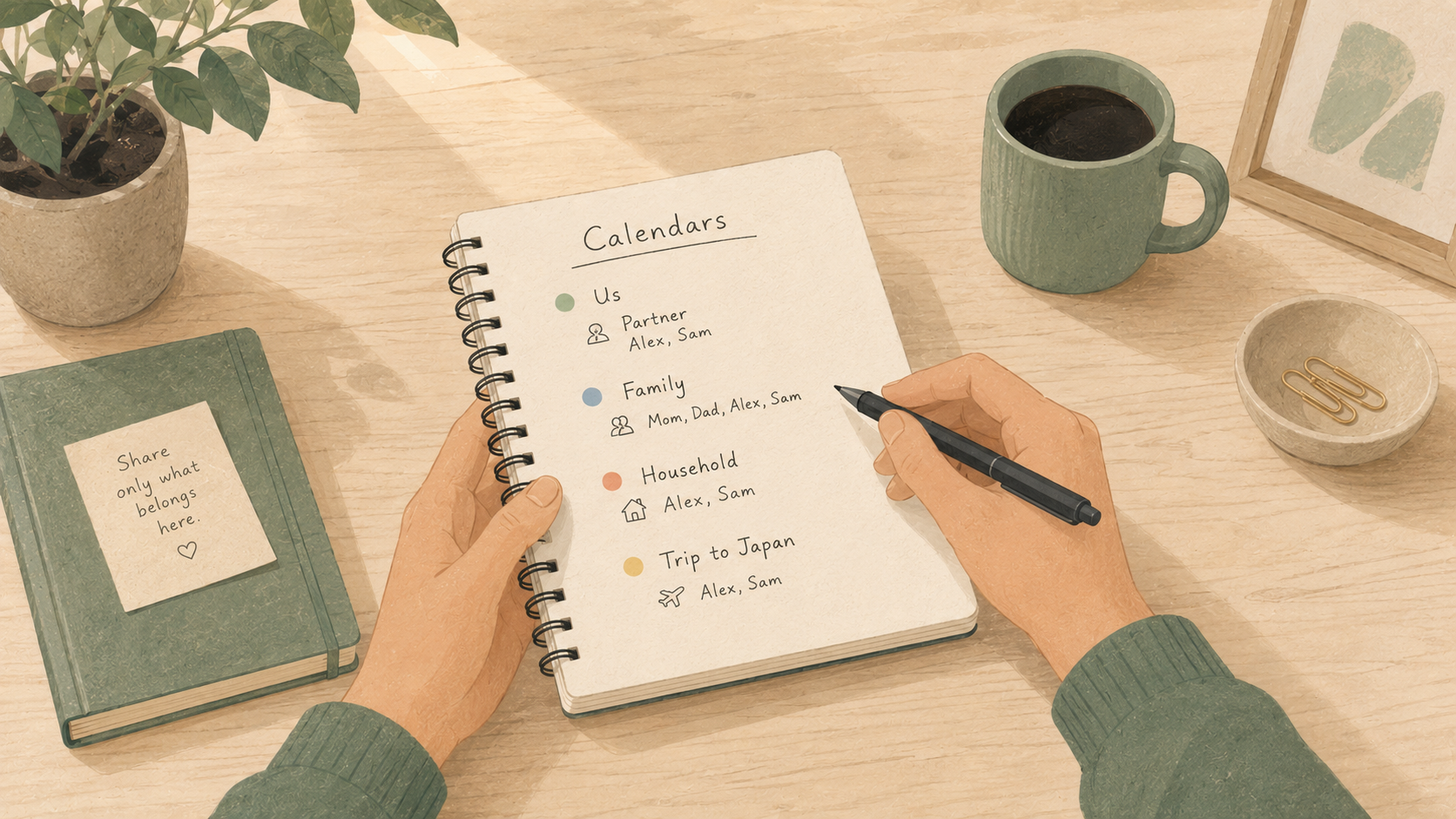
Instead of exposing your existing personal calendar, create a new calendar specifically for the plans you share.
Examples might include:
- Us
- Household
- Family
- Climbing
- School
- Trip to Japan
Only events that belong to that relationship or group go into the shared calendar.
Your existing calendars remain separate.
This changes the default from:
“Everything is visible unless I hide it.”
to:
“Nothing is shared unless I put it in the shared space.”
That is a much easier privacy rule to maintain.
Create a calendar for the relationship
Most people organise calendars by category:
- personal
- work
- birthdays
- tasks
- travel
Another useful way to organise them is by relationship.
You might have:
- one calendar with your partner
- one with the household
- one with close family
- one with the people you climb with
- one for a specific trip
- one for a small project
Each calendar answers a simple question:
Who needs to plan around these events?
This avoids one enormous “shared” calendar containing events for people who have little in common.
Your partner does not need the climbing group’s plans. Your housemates do not need your family birthdays. Your parents do not need every restaurant reservation.
A calendar per relationship keeps the audience understandable.
Sharing a calendar is different from publishing it
Private sharing and public calendar links may look similar because both can involve sending someone an invitation or URL.
They have very different security models.
Account-based private sharing
With private sharing, access is normally granted to a specific account.
Depending on the provider, you may be able to choose whether that person can:
- see availability
- view events
- create events
- edit events
- manage other members
Access can usually be revoked from a membership or permissions screen.
Link-based public sharing
A published calendar is accessible through its URL.
That is useful for information intended for a broad or changing audience:
- public events
- sports fixtures
- school term dates
- community schedules
- opening hours
It is less suitable for personal plans.
Apple, for example, distinguishes private iCloud sharing from a public calendar. Private participants need an Apple Account and can receive read-only or editing access. A public calendar can be viewed by someone with its link, but subscribers cannot edit it.
A link is convenient precisely because it can be forwarded and opened elsewhere.
That convenience is also why it should not be treated like an invitation tied to one known person.
Use roles instead of one universal permission
Not everyone in a shared calendar needs the same access.
A useful role model might contain:
Owner
The owner controls the calendar itself.
They can usually:
- invite or remove members
- change permissions
- rename the calendar
- transfer ownership
- archive or delete it
Editor
An editor participates in planning.
They can create and change events but do not necessarily control membership or ownership.
This role fits partners, housemates and active group members.
Viewer
A viewer can see the plans without changing them.
This is useful for:
- relatives following a travel calendar
- children viewing household plans
- occasional group members
- someone who needs awareness but not control
Musubi shared calendars support invite links and owner, editor and viewer roles, including ownership transfer.
Roles keep access proportional to what each person needs to do.
The problem with copying selected events
Creating a separate shared calendar introduces an obvious question:
What happens when an event also belongs in my personal calendar?
The usual solution is to copy it.
Suppose you have dinner with your partner on Friday.
You place one copy in your personal calendar and another in the shared calendar. Your partner may add a third copy to theirs.
The restaurant changes the reservation from 19:00 to 19:30.
Now someone has to update every copy.
If only one is changed, the calendars disagree.
The same problem appears when:
- the location changes
- an event is cancelled
- notes are added
- one occurrence of a recurring event moves
- a reminder changes
- another person joins
Calendar invitations can solve some of this, but they introduce organiser and attendee behaviour that may be unnecessary for ordinary shared plans.
Link events instead of duplicating them
A more flexible model is for one event to appear in several calendars while remaining a single event underneath.
The dinner could appear in:
- your personal calendar
- your partner’s calendar
- your shared couple calendar
The event is linked rather than copied.
When the time changes, there is one thing to update.
Musubi is designed around this model: one event can be connected to multiple calendars, while the origin calendar governs editing. The product describes the event as linked rather than duplicated, including through recurring-event exceptions.
This makes selective sharing easier because you do not have to choose between exposing the whole calendar and maintaining fragile copies.
You choose where the event belongs.
Keep private details out of shared fields
Even with a separate calendar, it is worth thinking about what belongs inside an event.
Consider separating information by purpose.
A shared event might contain:
- the time
- the place everyone needs
- the practical description
- a useful reminder
Personal notes can remain elsewhere.
For example:
Shared event
Dentist Tuesday, 15:00–16:00 Back around 16:30
Personal note
Questions about the treatment Insurance reference Symptoms to mention
The people you plan with receive the information they need without receiving the context they do not.
This is especially important when events are synchronized between providers. A description written in one calendar may later appear in another application, notification, widget or email.
A good rule is:
Put shared logistics in the shared event. Keep private context in a private place.
Be careful with notification previews
Calendar privacy does not end inside the calendar app.
Event titles can appear in:
- lock-screen notifications
- home-screen widgets
- smart watches
- email reminders
- desktop notifications
- car dashboards
- voice-assistant responses
A calendar may be correctly shared with only one person while its notifications are visible to everyone standing near a device.
For sensitive events, consider:
- using a neutral title
- hiding notification previews
- limiting which calendars appear in a widget
- keeping detailed notes outside the event title
- checking whether shared-event changes trigger emails
The goal is not to turn every appointment into “Busy.”
It is to understand where the title may appear.
Cross-platform sharing makes privacy harder
Calendar permissions are easiest when everyone uses the same provider.
A private iCloud calendar, for example, works naturally for people using Apple accounts. A shared Google Calendar is straightforward when everyone is comfortable using Google.
Mixed households are more complicated.
One person may use:
- iCloud for personal events
- Outlook for work
- Google Calendar for a community group
Their partner may use:
- Google Calendar personally
- a CalDAV server for family events
- another Outlook account for work
Forcing everything into one provider may technically solve sharing, but it also moves more information than necessary.
A cross-platform layer can let each person keep their existing provider while creating a separate private space for shared plans.
For the technical options, see the companion guide How to Share a Calendar Between iPhone and Android.
A practical setup for a couple
A privacy-conscious calendar setup does not need to be complicated.
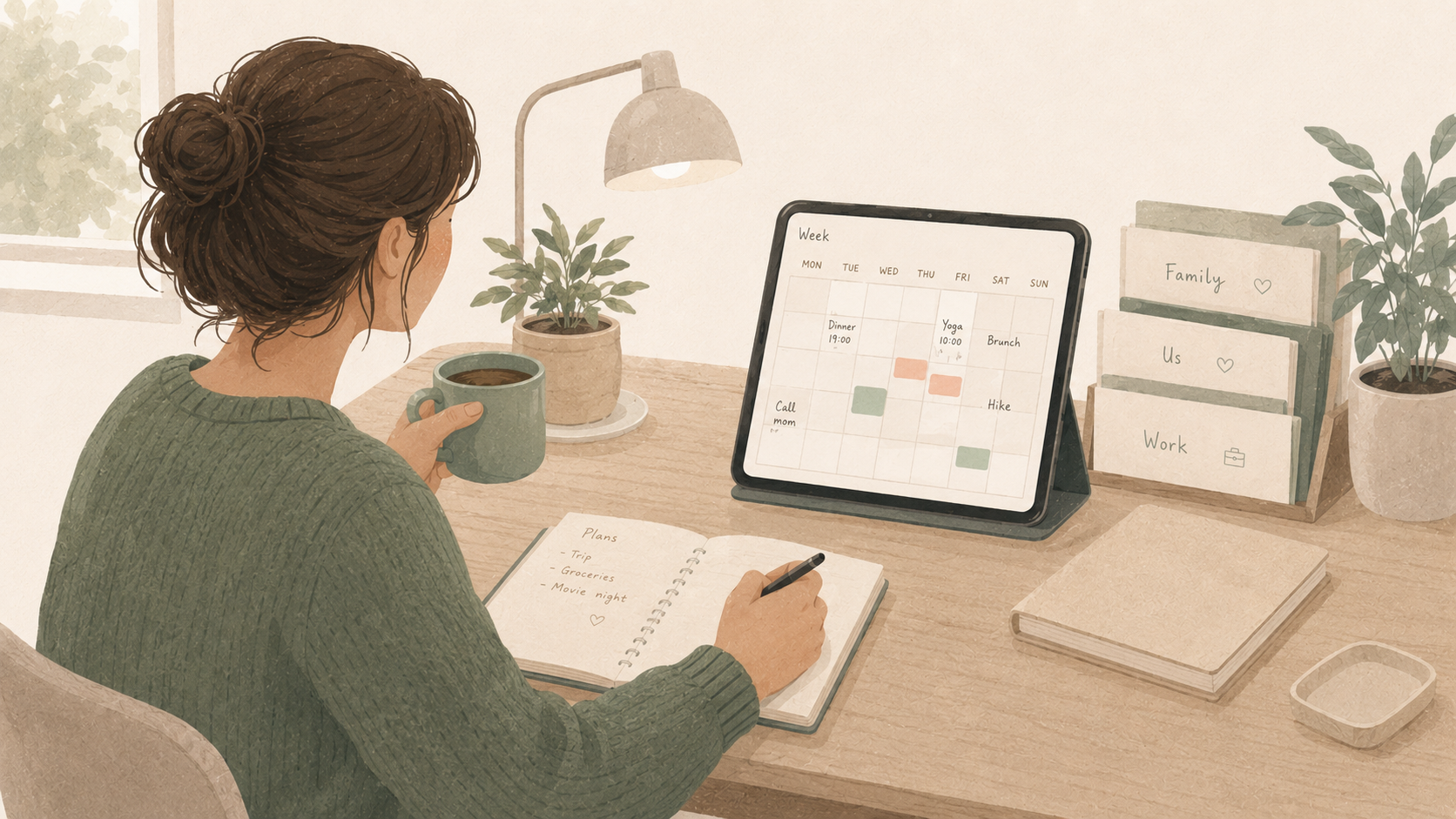
Imagine two people named Alex and Sam.
Alex keeps existing calendars
Alex continues using:
- an iCloud personal calendar
- an Outlook work calendar
Neither calendar is shared in full.
Sam keeps existing calendars
Sam continues using:
- a Google personal calendar
- a CalDAV calendar for a volunteer group
These also remain private.
They create one shared calendar
Alex and Sam create a private calendar called Us.
It contains:
- reservations
- visits
- holidays
- shared appointments
- events affecting both schedules
- evenings they have agreed to keep free
Both are editors.
They share only what belongs together
Alex has a work dinner on Wednesday.
Sam does not need its attendee list or business notes. Alex may add a simple block to the shared calendar:
Work dinner — home around 22:00
Sam has a private appointment on Friday. The shared calendar only needs:
Busy until 17:30
Their weekend trip belongs fully to both of them, so the complete itinerary can live in the shared calendar.
The result is useful without being invasive.
A practical setup for a household
A household calendar may need slightly different permissions.
For example:
- two adults are owners
- an older child is an editor
- a younger child or relative is a viewer
The calendar contains:
- maintenance visits
- school events
- guests
- household deadlines
- shared travel
- events affecting the home
It does not contain every adult’s personal appointments or complete work schedule.
When a personal event affects the household, add only the useful consequence:
Car unavailable until 15:00
That is often more helpful than sharing the original appointment anyway.
How Musubi approaches private calendar sharing
Musubi starts with a calendar per relationship.
You create a private calendar for the specific people you plan with and send an invite link yourself. There is no public discovery system, friends-of-friends feature or activity feed.
Google, Apple and iCloud, Outlook and Microsoft 365, and CalDAV calendars can be connected with two-way synchronization. That lets people retain their existing calendar providers while sharing selected plans through a separate calendar.
One event can also appear in several Musubi calendars without becoming several independent copies.
The purpose is not to make everybody’s complete schedule visible.
It is to give shared time a clear place to live.
Private does not automatically mean end-to-end encrypted
“Private calendar” can describe several different things:
- not publicly discoverable
- shared only with invited members
- protected during transmission
- not used for advertising
- inaccessible to the service operator
- hosted on infrastructure you control
These are not interchangeable.
Musubi’s hosted service uses HTTPS, EU infrastructure and restricted access, but it is not end-to-end encrypted. The server needs to process events for calendar sharing and synchronization with external providers. Musubi states this directly rather than implying that invite-only sharing makes the server unable to read event data.
For people who want control over the server itself, Musubi is open source under the MIT License and can be self-hosted using the included Docker Compose setup.
That distinction matters.
Private membership controls who can join a calendar. Encryption and hosting determine who can technically process the underlying data.
A trustworthy calendar product should explain both.
A private-sharing checklist
Before sharing a calendar, ask:
Who is the audience?
Can access be limited to specific invited accounts, or is the calendar published through a transferable link?
What can members see?
Do they see only availability, event titles or complete descriptions and locations?
What can members change?
Can they edit events, delete them or invite more people?
Does access apply to one calendar or your whole account?
Avoid granting broader access than the relationship requires.
What happens to private events?
Check whether marking an event private hides all details or only some fields.
Where else will event details appear?
Consider notifications, widgets, email reminders and connected applications.
Can access be revoked?
Make sure members can be removed and published links can be disabled.
Can the calendar be exported?
A standard format such as ICS gives you a path out if the service changes.
Is the service end-to-end encrypted?
Do not assume that “private,” “secure” or “invite-only” means the operator cannot access event contents.
Can it be self-hosted?
Self-hosting is not necessary for everyone, but it provides another level of control for people willing to operate the infrastructure.
Which sharing method should you choose?
Use free/busy sharing when someone only needs to know whether you are available.
Use limited-detail sharing when the audience needs titles or locations but should not edit anything.
Use a fully shared personal calendar only when broad access is genuinely required.
Use a separate private calendar when the plans belong to a partner, household, family or small group.
Use a published calendar link for schedules intended to be broadly viewable and read-only.
Use a cross-platform shared calendar when the participants want to keep their existing Google, Apple, Outlook or CalDAV accounts while sharing selected plans.
The most private option is not always the one that hides the most information.
It is the one that shares exactly enough.
Try Musubi
Musubi is an open-source, self-hostable shared calendar for partners, households, families and small groups.
Create a calendar for the relationship, invite only the people who belong there and connect the calendar providers you already use.
Start with one private shared calendar, read the documentation or explore the source code on GitHub.
Frequently asked questions
How can I share my calendar without showing event details?
Use a free/busy permission where your calendar provider supports it. Other people will see when you are unavailable but not the titles, locations or descriptions of your events.
Can I share only selected calendar events?
You can invite someone to individual events or place selected events in a separate shared calendar. A separate calendar is usually easier to manage when you regularly plan with the same person or group.
Is a shared calendar link private?
Not necessarily. A public or published calendar link can generally be opened by anyone who receives it. For personal plans, prefer account-based invitations or an invite-only shared calendar with revocable membership.
Should I share my personal calendar with my partner?
Usually, a separate calendar for plans affecting both partners is cleaner. It provides useful visibility without exposing unrelated personal and work events.
Can someone edit a calendar I share with them?
That depends on the permission you grant. Many calendar services offer read-only and editing access. Some also provide more powerful owner or delegate roles.
What is free/busy calendar sharing?
Free/busy sharing displays the times when you are unavailable while hiding event names and other details. It is useful for scheduling but does not provide a collaborative calendar.
Is an invite-only calendar end-to-end encrypted?
Not automatically. Invite-only access controls membership. End-to-end encryption separately determines whether the service operating the calendar can read event contents.
Can I privately share a calendar between iPhone and Android?
Yes. A shared Google Calendar is one option. You can also use CalDAV or a cross-platform calendar that connects Google, iCloud, Outlook and other providers.
Can I self-host a private shared calendar?
Yes. Self-hosted CalDAV servers and open-source calendar applications let you run calendar infrastructure on your own server. Musubi also includes a Docker-based self-hosting setup.