How to Share a Calendar Between iPhone & Android
Learn how to share a calendar between iPhone and Android, compare Google, iCloud, ICS and CalDAV, and keep both calendars in sync.
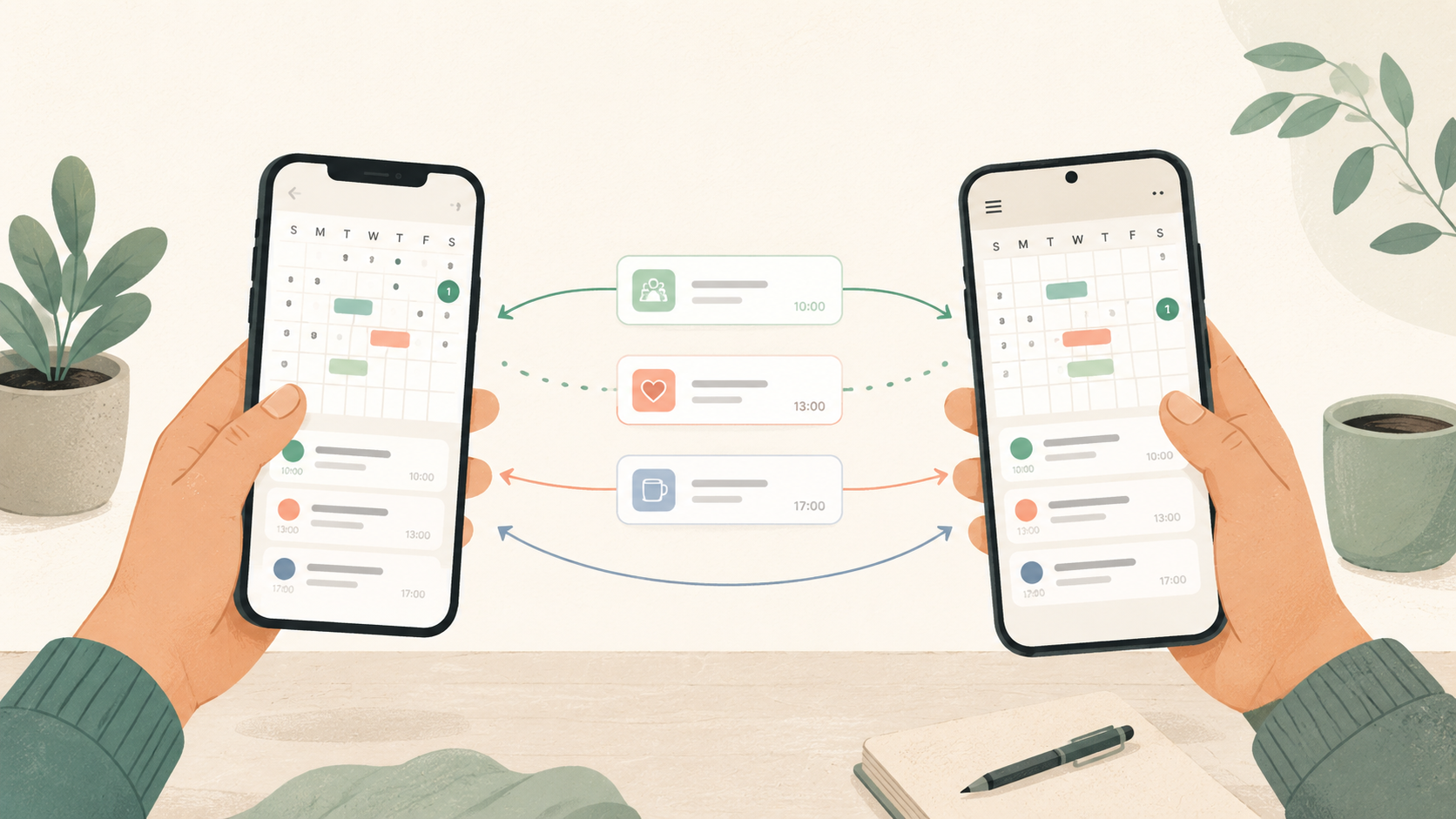
Planning together should not depend on having the same phone.
One person uses an iPhone and keeps everything in Apple Calendar. The other uses Android and relies on Google Calendar. Work events may be in Outlook, while birthdays and family plans live somewhere else entirely.
All you want is a shared place for dinner reservations, appointments, trips and the occasional reminder to buy cat food.
There are several ways to share a calendar between iPhone and Android. The right one depends on whether you need simple visibility, two-way editing or a shared calendar that works without forcing either person to abandon their existing setup.
Here are the practical options.
The simplest answer
For most people, there are four common approaches:
- Create a shared Google Calendar and add it to both phones.
- Publish or subscribe to a calendar using an ICS link.
- Connect both people through a calendar service that supports CalDAV.
- Use a cross-platform shared calendar that connects to the calendars you already have.
A shared Google Calendar is usually the easiest free option. An ICS subscription works when one person only needs to see events. CalDAV provides more control but can require additional setup.
A cross-platform calendar is the better fit when both people want to keep using their existing Google, iCloud, Outlook or CalDAV calendars while also having a private place to plan together.
Option 1: Use a shared Google Calendar
The most common solution is to use Google Calendar as the shared calendar, even when one person has an iPhone.
Google Calendar works on Android, and a Google account can also be added to an iPhone through the iOS Calendar settings or the Google Calendar app.
How it works
One person creates a new Google Calendar and shares it with the other person’s Google account.
Both people can then:
- see the shared calendar,
- create and edit events,
- receive invitations and reminders,
- choose a separate colour for shared plans,
- use it alongside their private calendars.
The iPhone user does not have to stop using Apple Calendar. The shared Google calendar can appear inside Apple’s Calendar app after the Google account is connected.
When this works well
A shared Google Calendar is a good choice when:
- both people are comfortable having Google accounts,
- one person already uses Google Calendar heavily,
- you only need one shared calendar,
- you do not mind Google being the central home of the shared events.
Where it becomes awkward
The calendar may work across both phones, but it still belongs to the Google ecosystem.
The iPhone user may end up with some events in iCloud and others in Google. Sharing an existing iCloud calendar is still a separate problem. Adding Outlook, work accounts or a self-hosted CalDAV server creates another layer of switching.
It solves cross-platform access, but not necessarily calendar fragmentation.
Option 2: Share an iCloud calendar with an ICS link
Apple allows an iCloud calendar to be published using a public calendar link. This link uses the ICS calendar format and can be subscribed to from many calendar applications.
This can make an iCloud calendar visible on Android.
However, there is an important limitation.
ICS subscriptions are usually read-only
An ICS subscription is closer to following a calendar than joining it.
Events created in the original iCloud calendar can appear on the Android device, but the Android user generally cannot edit those events or add new ones back to the same calendar.
Updates may also take time to appear because calendar applications refresh subscribed feeds on their own schedules.
Privacy also matters
A published iCloud calendar is accessible to anyone who has its link. The link may be difficult to guess, but it is still a link to a published calendar rather than a private invitation tied to a specific account.
That makes ICS useful for things such as:
- public schedules,
- school calendars,
- sports fixtures,
- a calendar one person manages and others only view.
It is less suitable for private plans that both people need to edit.
Option 3: Use CalDAV
CalDAV is an open protocol that allows calendar applications to read and write calendar data on a server.
Apple Calendar supports CalDAV. Services such as Nextcloud, Fastmail and Radicale use it too. Android can work with CalDAV, although the exact setup depends on the calendar application and may require an additional sync client.
Why people choose CalDAV
CalDAV is useful when you want:
- two-way calendar synchronisation,
- an alternative to Google or Apple,
- support for open-source or self-hosted services,
- control over where calendar data is stored,
- compatibility across several calendar applications.
A self-hosted Nextcloud or Radicale server, for example, can become the common calendar backend for both iPhone and Android.
The trade-off
CalDAV is a protocol, not a complete shared planning experience.
You still need to choose and operate a server, configure accounts on each device, manage permissions and make sure recurring events, reminders and time zones behave correctly across clients.
For technical users, that flexibility is a strength. For a household that simply wants to know who is free on Friday, it may be more infrastructure than expected.
Option 4: Use a calendar that connects both ecosystems
The other approach is to stop trying to make iCloud behave like Google Calendar—or Google Calendar behave like iCloud.
Instead, use a shared calendar that connects to both.
This is the idea behind Musubi.
Musubi can bring Google Calendar, Apple and iCloud, Outlook and Microsoft 365, and CalDAV calendars into one view. Synchronisation works both ways, so changes can flow between Musubi and the original calendar provider.
The goal is not to replace every calendar you already use. It is to tie them together.
A shared calendar should not require sharing everything
A common workaround is to give a partner access to an entire personal calendar.
That often reveals more than intended.
Your personal calendar may contain medical appointments, work calls, travel details, reminders or event notes that are not relevant to anyone else. The alternative—copying selected events into a second calendar—creates duplicate events that can fall out of sync.
A better model is to create a calendar for the relationship itself.
For example:
- one calendar for you and your partner,
- one for the household,
- one for close family,
- one for a small group of friends,
- one for a team or recurring activity.
Only the people invited to that calendar should see it.
This keeps shared plans separate from the rest of your life without hiding them inside a second app that nobody remembers to open.
How Musubi handles shared events
Most calendar systems treat an event as something stored inside exactly one calendar.
Real plans are rarely that tidy.
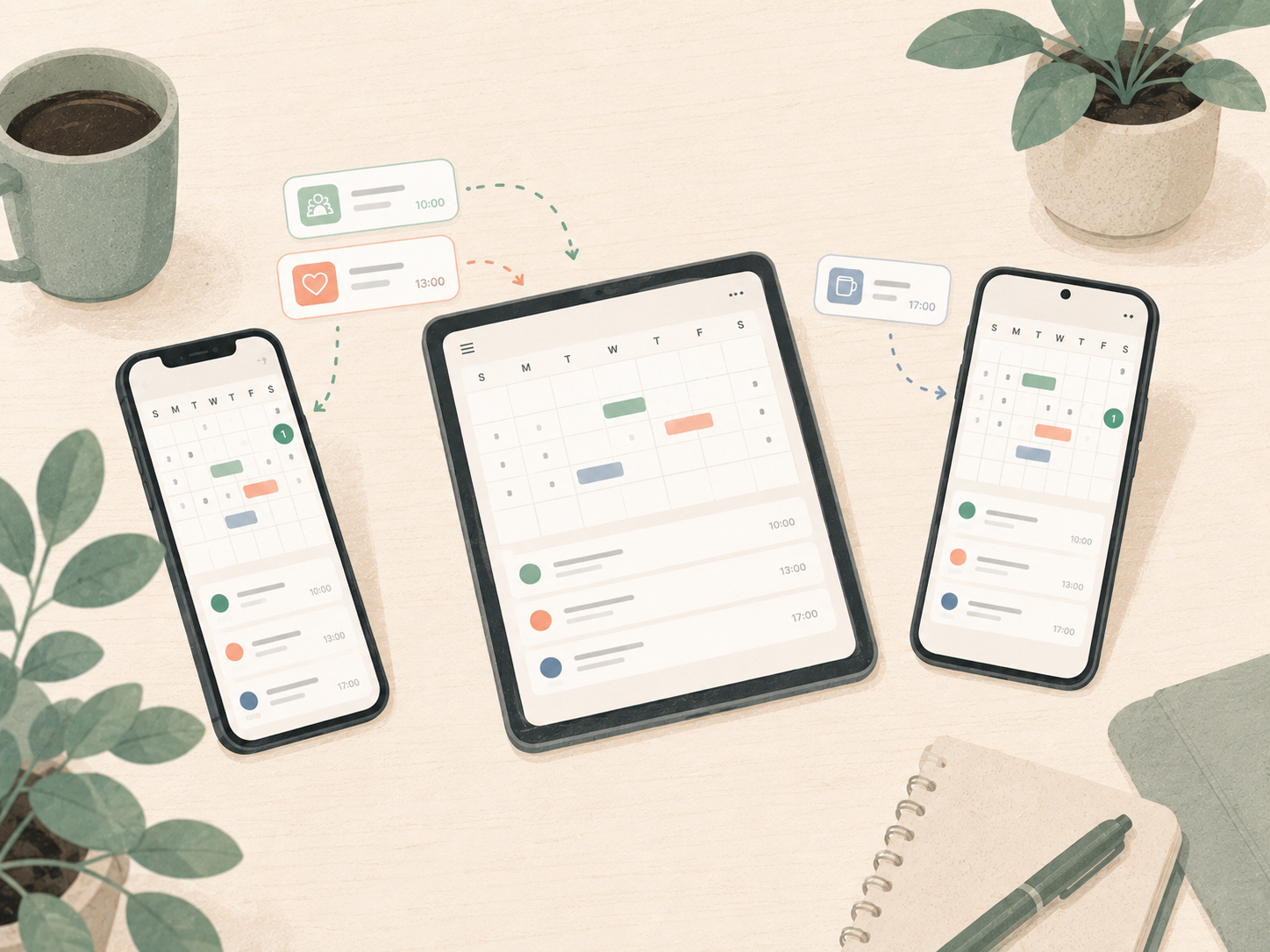
A dinner may belong to your personal calendar, your partner’s calendar and a family calendar at the same time. Copying it into three calendars creates three separate events. Change the restaurant in one copy and the others may stay wrong.
Musubi allows one event to be linked to multiple calendars instead.
The event is shared where it needs to be, but it is not duplicated. Edit it once and the change appears everywhere the linked event belongs.
That is especially useful when several calendar providers are involved.
A practical iPhone and Android setup
A simple setup for two people might look like this:
On the iPhone side
The iPhone user continues using Apple Calendar and iCloud for personal events.
Their iCloud calendar is connected to Musubi using an app-specific Apple password. Events can then synchronise in both directions.
On the Android side
The Android user connects one or more Google Calendar accounts to Musubi.
Existing Google calendars remain available, including read-only calendars and calendars from multiple accounts.
For shared plans
The couple creates a private shared calendar in Musubi and joins through an invite link.
Shared events can be kept in that calendar alone or linked to other relevant calendars. Each person can continue using their existing calendar provider without moving their entire schedule to the other person’s ecosystem.
No public feed is required.
What to look for in an iPhone and Android shared calendar
Before choosing a solution, check a few things.
Can both people edit events?
Some calendar sharing methods provide visibility but not collaboration. Make sure both people can create, update and delete events when necessary.
Does it sync both ways?
Two-way sync means a change made in one calendar can return to the original provider. Without it, you may be looking at a copy that slowly becomes outdated.
Can you keep private calendars private?
A shared calendar should let you share selected plans without exposing an entire personal or work calendar.
Does it support recurring events properly?
Recurring events are more complicated than they appear. A calendar needs to handle the series, individual exceptions, moved occurrences and deleted occurrences without creating duplicates.
What happens when somebody leaves?
You should be able to remove access cleanly and export your calendar data in a standard format such as ICS.
Who operates the server?
Calendar data can reveal where you will be, when your home may be empty and who you spend time with. Check whether the service uses advertising, sells data or builds profiles from calendar activity.
Open-source and self-hostable software gives you an additional option: inspect the code or run the service on infrastructure you control.
Which option should you choose?
- Use a shared Google Calendar when both people are happy to use Google for the shared calendar and want the quickest setup.
- Use an ICS subscription when one person only needs a read-only view of another calendar.
- Use CalDAV when you want an open standard, control over the server and do not mind a more technical setup.
- Use a cross-platform shared calendar when you want to keep Google, iCloud, Outlook or CalDAV as they are while creating a private planning space between people.
The phones do not need to match. The calendars do not need to belong to the same company either.
They only need a reliable way to meet in the middle.
Try Musubi
Musubi is an open-source, self-hostable shared calendar for partners, households, families and small groups.
It connects Google Calendar, Apple and iCloud, Outlook and Microsoft 365, and CalDAV calendars with two-way synchronisation. Shared calendars are invite-only, with no activity feed, advertising or friend-discovery layer.
Frequently asked questions
Can I share an Apple Calendar with an Android phone?
You can publish an iCloud calendar and subscribe to it on Android using an ICS link, but this is generally read-only. For two-way editing, use a shared Google calendar, a CalDAV service or a cross-platform calendar service.
Can an iPhone use a shared Google Calendar?
Yes. A Google account can be added to the iPhone’s Calendar settings, or the Google Calendar app can be installed. Shared Google calendars can then appear alongside iCloud calendars.
Can Android connect directly to iCloud Calendar?
Android does not include native iCloud calendar integration. Access normally requires an ICS subscription, a compatible CalDAV client or a service that connects to iCloud on the user’s behalf.
Is an ICS calendar link private?
An ICS link is accessible to anyone who obtains the link. It can be suitable for published or read-only calendars, but an account-based private invitation is safer for personal shared plans.
What is the best shared calendar for an iPhone and Android couple?
A shared Google Calendar is the simplest option when both people are comfortable using Google. A cross-platform service is more suitable when one person wants to keep iCloud, the other wants to keep Google Calendar, and both need private two-way sharing.
Can I self-host a shared calendar?
Yes. CalDAV servers such as Nextcloud and Radicale can be self-hosted. Musubi is also open source under the MIT License and includes a Docker-based self-hosting setup.